
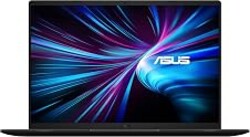
ASUS Vivobook 14 14" FHD Laptop, Intel 10-Core 5 120U(Up to 5GHz), 16GB RAM 512GB SSD, Win 11 Wifi6 Bluetooth Long Battery Life Webcam Computer for Business College Students w/GM Accessory
As an Amazon Associate we earn from qualifying purchases.
We sells laptop-computer with upgraded configurations. If the computer has modifications (listed above), then the manufacturer box is opened for it to be tested and inspected and to install the upgrades to achieve the specifications as advertised. If no modifications are listed, the item is unopened and untested.
Defects & blemishes are significantly reduced by our in depth inspection & testing. Microprocessor: Intel Core 5 120U(10 Cores, up to 5 GHz) Memory: Upgraded to 16GB DDR4 RAM Solid state drive capacity: Upgraded to 512GB SSD(expandable up to 2TB) Video graphics: Intel Graphics Display: 14" FHD(1920×1080) display Wireless connectivity: Wi-Fi 6 and Bluetooth External ports: 1 x USB 3.2 Type-C | 2 x USB 3.2 Type-A | 1 x USB 2.0 Type-A | 1 x HDMI 1.4 | 1 x DC Jack Minimum dimensions (W x D x H): 12.79 x 8.42 x 0.7 in Weight: 3.09 LB Battery life mixed usage: Up to 8 hours Operating system: Windows 11 Home in S Mode Switching out of S mode in Windows 11 Windows 11 in S mode is designed for security and performance, exclusively running apps from the Microsoft Store.
If you want to install an app that isn't available in the Microsoft Store, you'll need to switch out of S mode 1. On your PC running Windows 11 in S mode, open Settings > System > Activation. 2.
In the Switch to Windows 11 Pro section, select Go to the Store. (If you also see an "Upgrade your edition of Windows" section, be careful not to click the "Go to the Store" link that appears there.) 3. On the Switch out of S mode (or similar) page that appears in the Microsoft Store, select the Get button.
After you see a confirmation message on the page, you'll be able to install apps from outside of the Microsoft Store.
Price History (last 12 months)
Source: Keepa.com




No comments yet. Be the first to share your thoughts!